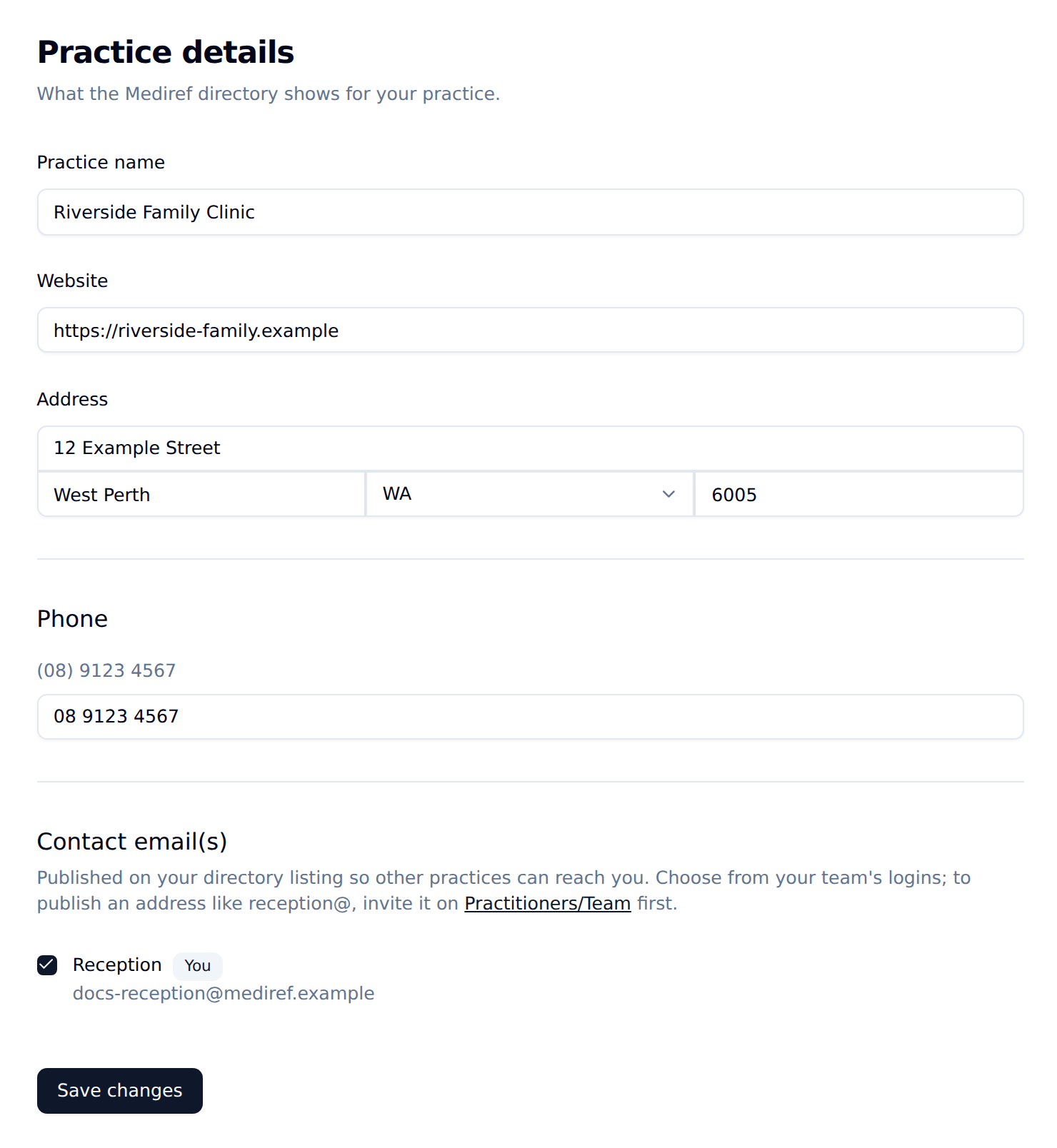
Your practice name, phone number, website and address go into the Mediref directory, where other practices see them the next time they look you up.
Steps
- Click your practice name at the bottom of the sidebar, then click Settings.
- Click Practice details.
- Change what you need to, then click Save changes.
Practitioners
Settings → Practitioners/Team lists your practitioners. Click Edit practitioners, type each whole name, title and all, into its own box, and Mediref sorts it into title, first name and surname. The arrows move a row up or down. Click Save changes.
The list goes into the directory so other practices can address correspondence to a particular practitioner.
Changes other practices suggest
Other practices can suggest corrections to your listing. They don’t change anything until you accept them. Practice details appears in the sidebar with a Review tag, and every so often the review opens by itself. Anyone who can change your practice’s settings can answer it.
Pick Update or Don’t update for each suggestion, then click Save changes. For a suggested email address, Add takes you to Practitioners/Team to invite that person. A suggestion nobody answers lapses after 60 days, and one you decline isn’t suggested again for a year.