Two lists decide where your practice’s email goes. Both are made from the people who can sign in at your practice.
- Settings → Notifications chooses who is emailed when correspondence arrives, a send fails, or a file is blocked as unsafe. Each person switched on gets their own email, so you can switch on as many as you like. Switch everyone off and nobody is emailed; correspondence still arrives in your inbox.
- Contact email(s) on Settings → Practice details chooses which addresses your directory listing publishes, so other practices can reach you. You can show none.
- A shared mailbox such as reception@ works like a person: invite it under Admin staff on Settings → Practitioners/Team, then switch it on under Notifications or tick it under Contact email(s).
Steps
- Click your practice name at the bottom of the sidebar, then click Settings.
- Open Notifications and switch on the people to email; each switch saves straight away. Or open Practice details, tick the addresses to publish under Contact email(s), and click Save changes.
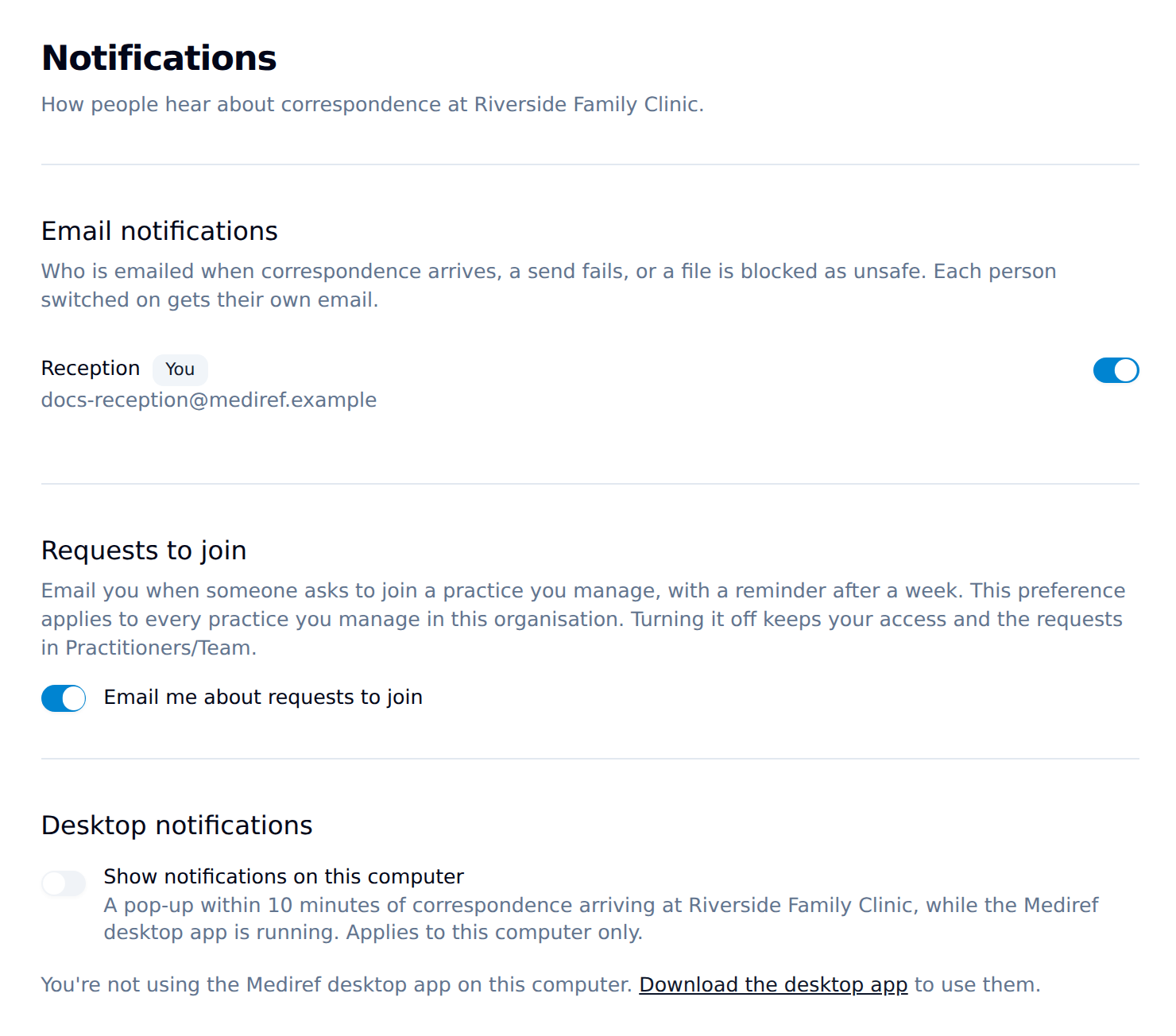
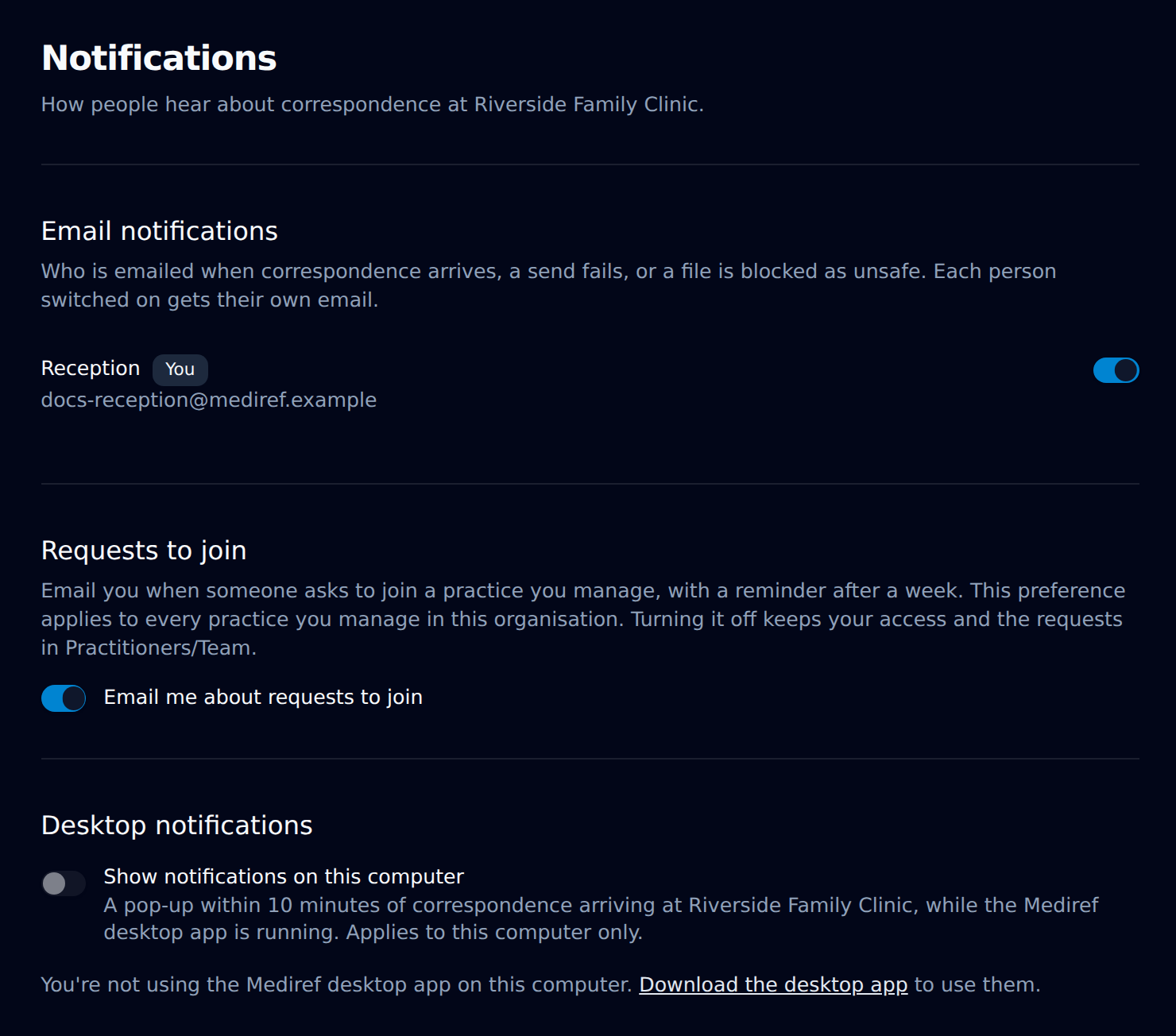
Anyone can switch their own notifications on or off. Changing anyone else’s, or the contact email, needs permission to change the practice’s settings. Only people with access to correspondence can be emailed about it.
Requests to join
People with practice settings permission and organisation governance holders receive requests to join the practices they manage. Under Settings → Notifications → Requests to join, switch off Email me about requests to join to stop both the initial emails and weekly reminders. This is your preference for every practice you manage in that organisation; it does not remove your permissions.
Everyone may opt out. Requests remain in Practitioners/Team, even when nobody receives an email.