Corrects the details Mediref holds for another practice, so your next correspondence goes to the right place.
Steps
Click Directory in the sidebar and open the practice.
Press E or click Update details at the bottom of the entry.
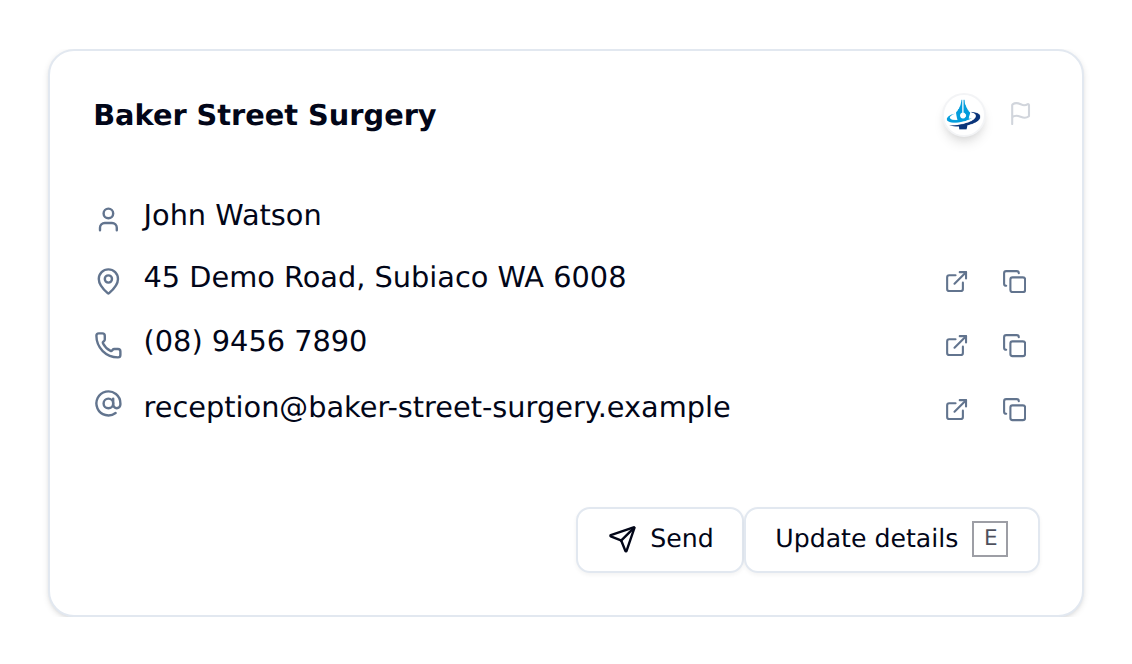
The Update details and Send buttons on a directory entry In the Updates for form, correct only what you’re sure about: practice name, practitioners, phone number, email and address.
Click Submit changes.
If the practice is on Mediref, your change goes to that practice to accept or decline — Suggestion sent to the practice. If it isn’t, it goes into the directory straight away — Practice updated successfully.
The small flag icon beside the practice name is for an entry that shouldn’t be there at all. Remove Entry hides it from your own practice or removes it for everyone; Report Duplicate reports it as a duplicate. An entry your practice added, that no other practice has sent to, is removed for everyone straight away; any other removal is reviewed by Mediref first. When reporting a duplicate, pick at least two entries so we know which ones belong together.