Finds a practice or practitioner and shows the contact details Mediref holds for them.
Steps
Click Directory in the sidebar.
Press ; or click the Search by name or email box, then type a practice name, a practitioner’s name, or an email address. Part of an address works too: info@smith or just @smithdental.
Press Enter or click to open the highlighted result. Shift + Enter goes straight to Compose with that practice added as a recipient.
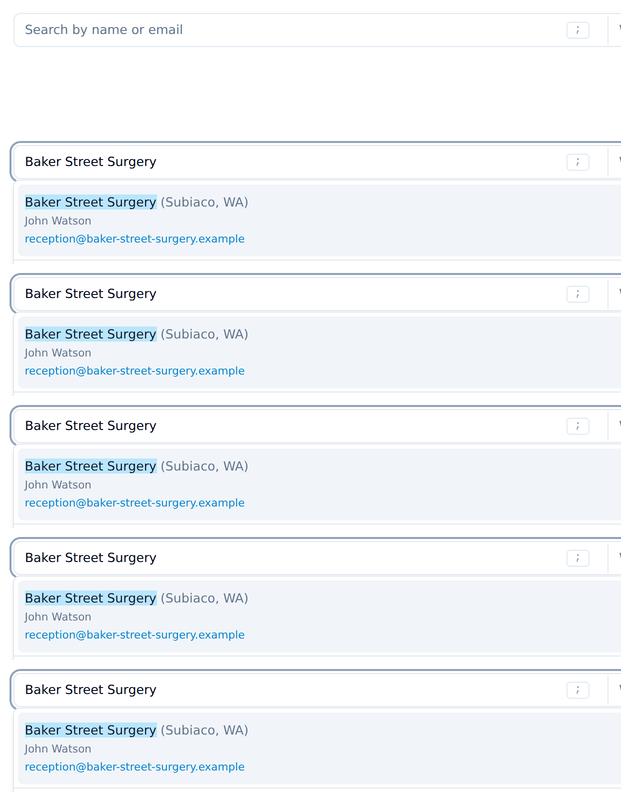

Searching the Mediref directory
The state filter beside the search box starts on your own state, not on every state. Change it to All states if a practice you know exists doesn’t come up.
A small Mediref logo beside a result means the practice is on Mediref, so correspondence you send them lands straight in their Mediref inbox instead of going out as a secure email link.
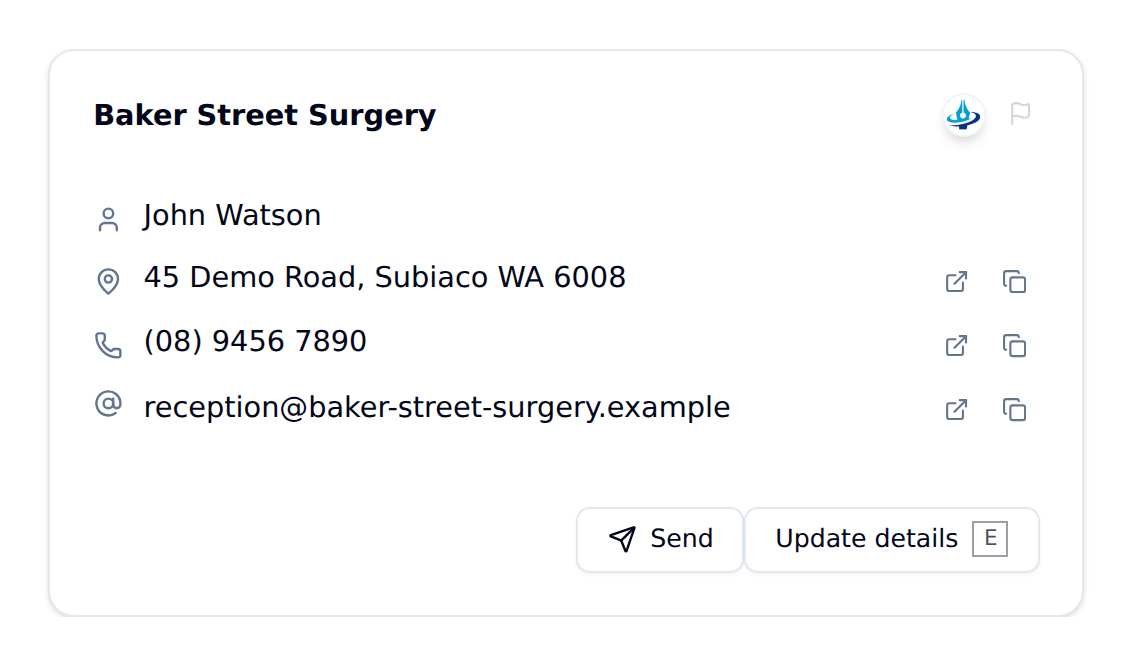
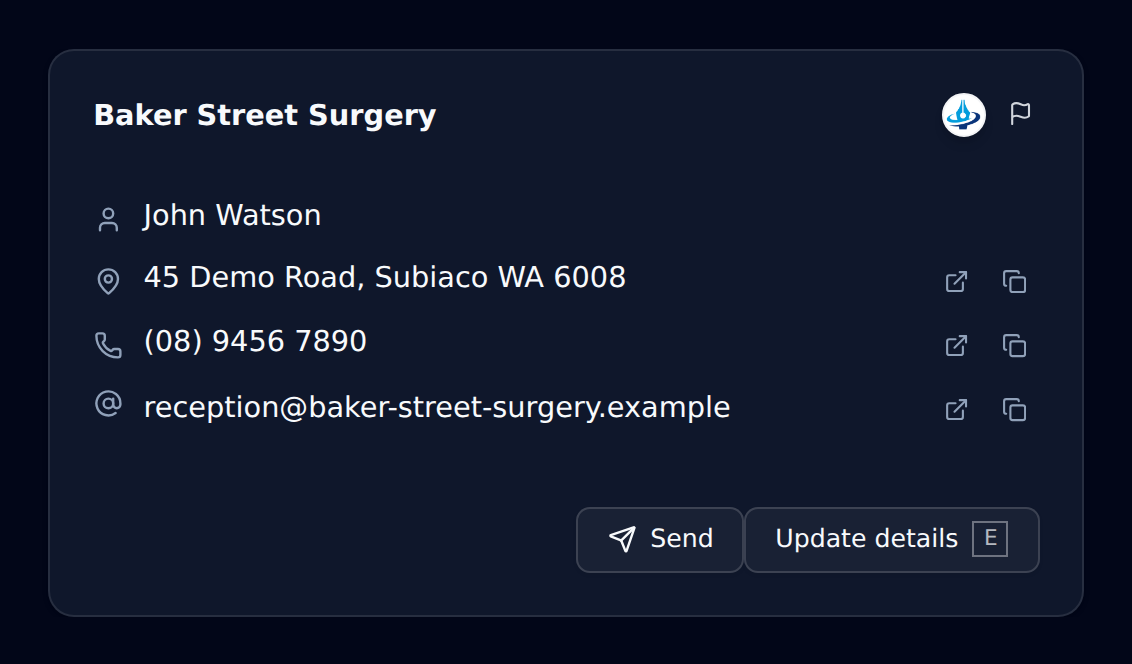
Add a practice that isn’t listed
The bottom of the results offers to add what you typed, for example Add “Jing Wang” as a new practitioner or Add “Jing Wang” as a new practice. A complete email address is offered as a new email instead. Choosing one opens the details form with what you typed already filled in.
Nothing is added until you click Add listing, so you can close the form to back out. If the email you entered already belongs to a listing, or the practice or practitioner name is close to one already listed (in the same suburb or postcode, if you entered an address), Mediref shows those listings first. Open one to check it’s the same practice, or click Add anyway if it isn’t.
A new listing is yours to search, open and send to straight away. Other practices can find it once Mediref confirms it’s a real practice; until then only your practice and practices that send to it see it.