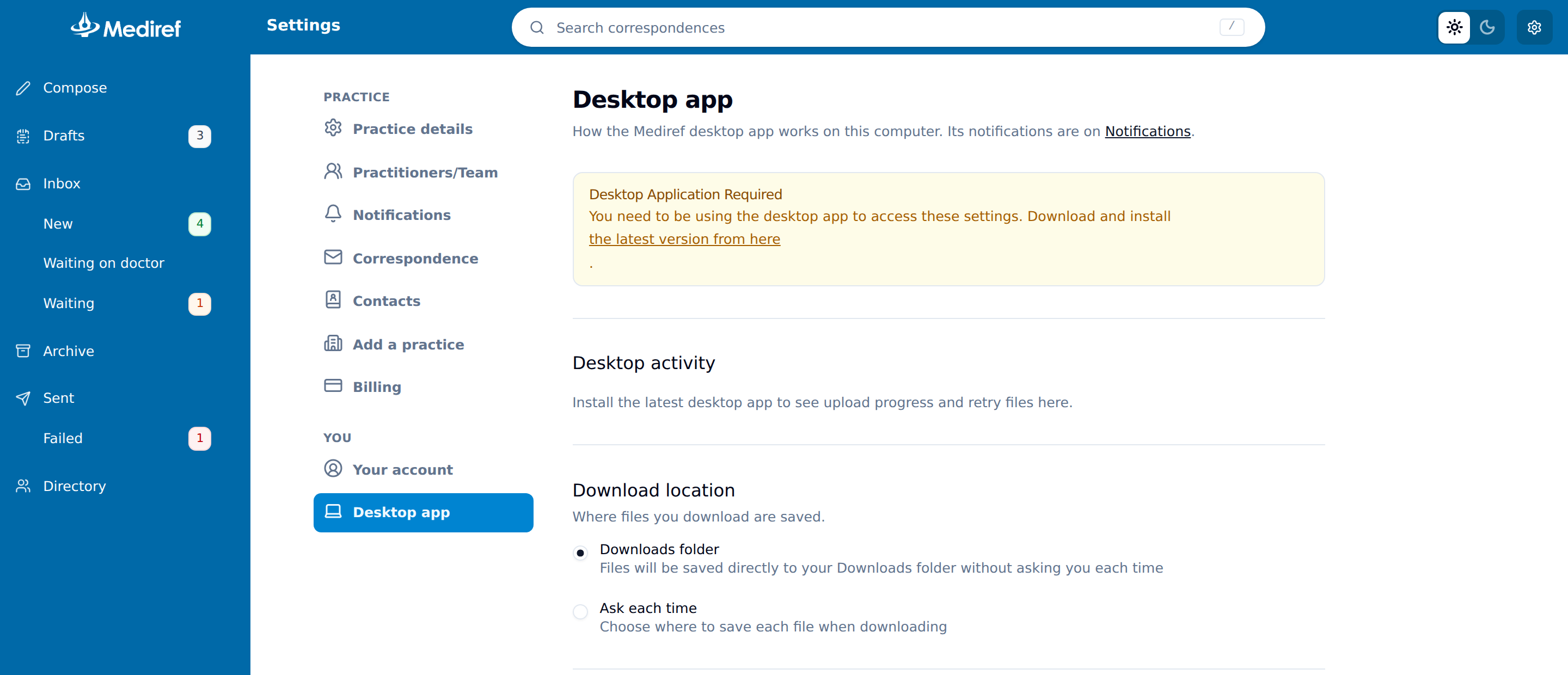
Settings → Desktop app, in the desktop app, holds your computer settings. They apply to the computer you’re sitting at, not to your whole practice, so set them again on each computer. A message confirms each change; nothing here needs saving.
Desktop notifications, a pop-up within 10 minutes of correspondence arriving, are on Settings → Notifications under Desktop notifications. They’re on by default in the desktop app, and like these settings apply to this computer only.
- Desktop activity — files the app is uploading and whether each is done. Click Retry beside one marked Needs attention; Pause uploads holds the queue until you resume, and Check for updates looks for a newer app.
- Download location — Downloads folder saves without asking; Ask each time opens a window for every file. You can’t name a folder here. Practices already using automatic downloads can manage that folder separately.
- Enable automatic uploads — see Set up automatic uploads.
- Enable automatic downloads — shown only while your practice already has it enabled; see Set up automatic downloads.
- Launch on startup — Mediref opens every time the computer starts. Turn this on wherever you use automatic uploads or downloads: both need Mediref open, so a restart with nobody opening it stops them until someone does.
Updating the app
When a new version has downloaded, a box in the bottom right corner says it is ready to install. Click Restart and update, or Later to have it install the next time Mediref closes. After a week Later goes and the box asks you to restart now. If installing needs an administrator’s password on this computer, the box says so: have it ready, or ask your IT support. Computers whose updates are managed by IT don’t see the box.
Mediref versions older than 3.0.0 are no longer supported. Until 10 November 2026 they show an Update Mediref by 10 November warning that can’t be closed; from then, Update Mediref to continue covers the app until it’s updated. Use Mediref in your browser keeps you working in the meantime.
The settings are greyed out
You’re using Mediref in a browser. A yellow Desktop Application Required warning sits across the top of the page. Open the desktop app from the Start menu or Applications and sign in there — see Install Mediref on Windows or on a Mac.
Your app needs updating. A greyed-out switch with “You need to download the latest version to utilise this feature” beside it means this app is too old for that setting. Click the latest version in the Manual application update required warning in the bottom right corner, then open the downloaded file to install over the top. You don’t need to uninstall first.